Setting up your Support Agent’s knowledge base
A practical walkthrough for going from an empty agent to one that answers real customer questions on your site, using what’s live today.
Know what the Support Agent can (and can't) do today
The Support Agent answers questions from a knowledge base you control, and escalates to a human when it can’t help — with the full conversation thread and its reasoning attached. That’s what’s live today.
It doesn’t yet look up order status, process refunds, or take account actions. Setting expectations here up front avoids a confusing first week where the agent gets asked things it isn’t built to do.
Add your first knowledge sources
From your Support Agent’s Knowledge tab, click + Add source. Each source has a type — FAQ, Policy, Product Doc, or URL — a title, and content:
- FAQ — a single question and its answer.
- Policy — returns, shipping, cancellations, anything with rules.
- Product Doc — how a product or feature works.
- URL — a page to crawl (a help center article, for example).
Start with the 10–15 questions your team answers most often. Each source shows a status — Pending, Processing, Ready, or Failed — as it’s embedded into the agent’s knowledge base.
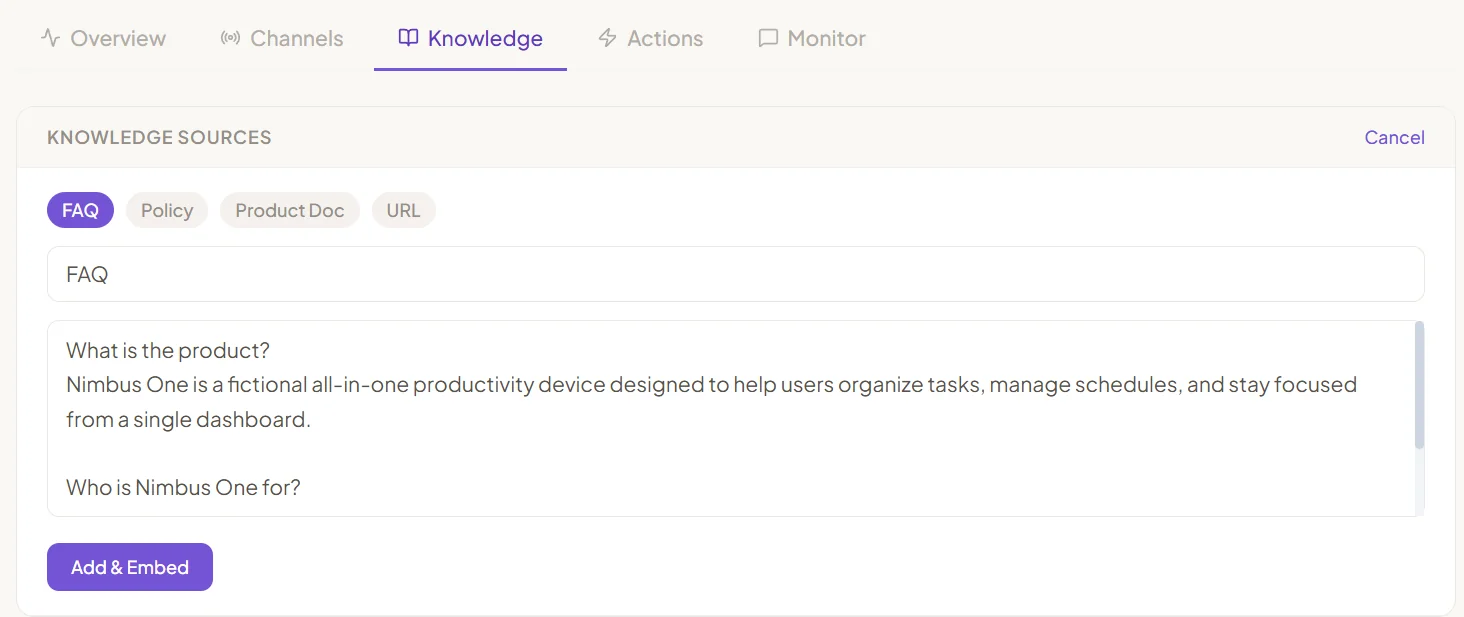
Write FAQs the agent can actually use
One topic per source beats one giant document. A 400-word “Everything about Shipping” page is harder for retrieval to match precisely than five short, focused entries: shipping times, shipping costs, international shipping, lost packages, address changes.
Write answers the way you’d actually say them to a customer — the agent replies using the source content and your configured tone, not a rewritten summary of it.
Test it before anyone else sees it
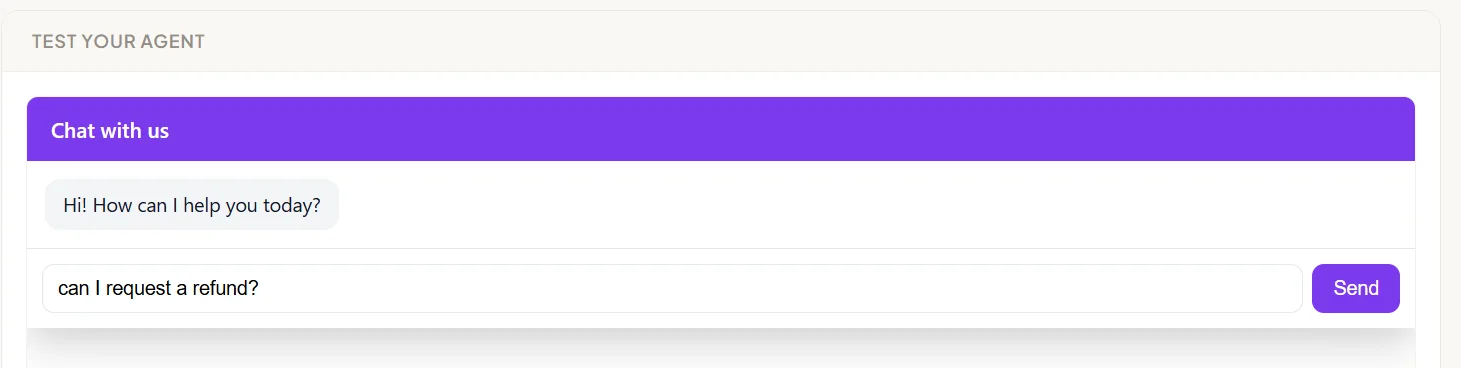
The Support Agent’s Actionstab includes a built-in test chat. Ask it the questions your knowledge sources cover, and a few you expect customers to ask in their own words. If it can’t answer something it should be able to, that’s usually a sign the source needs to be split up, retitled, or rewritten — not that the agent is broken.
Configure escalation
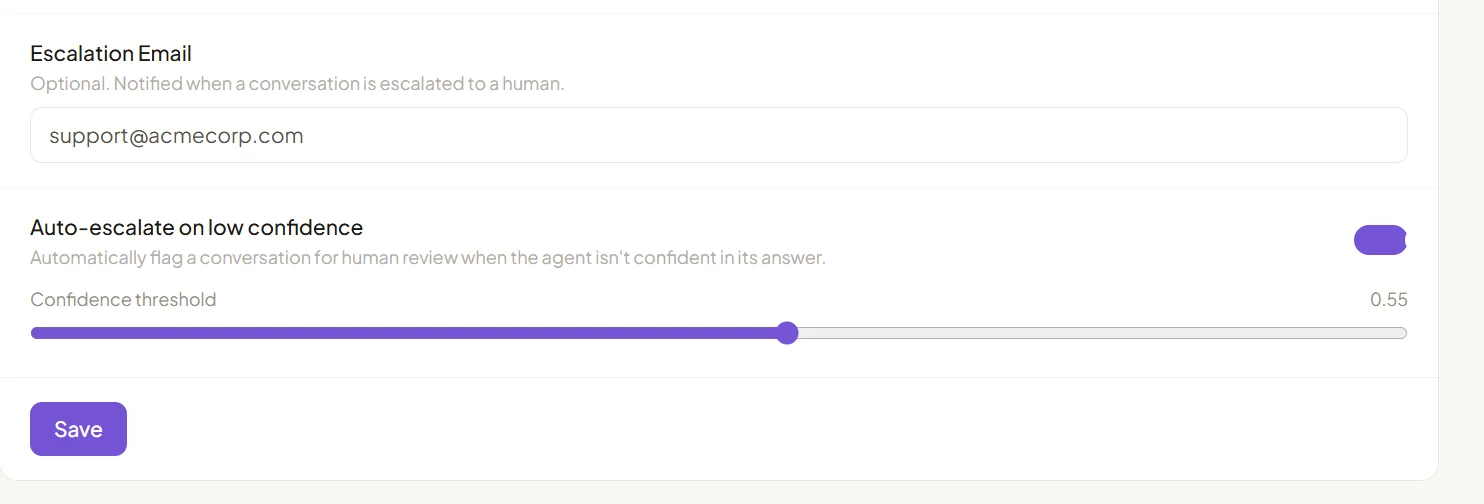
Still on the Actions tab, set an Escalation Email so your team is notified when a conversation is handed off. Turn on Auto-escalate on low confidence and set a confidence threshold (0–1) — below that threshold, the agent escalates instead of guessing.
You can also set a Greeting Messagefor what visitors see when they open the widget, and optionally override the agent’s default persona with a system prompt of your own.
Embed the widget on your site
The Channels tab gives you a snippet to paste before the closing </body> tag on your site:
<script src="https://yourdomain.com/widget.js" data-agent-id="YOUR_AGENT_ID" async></script>
Watch the Monitor tab after launch
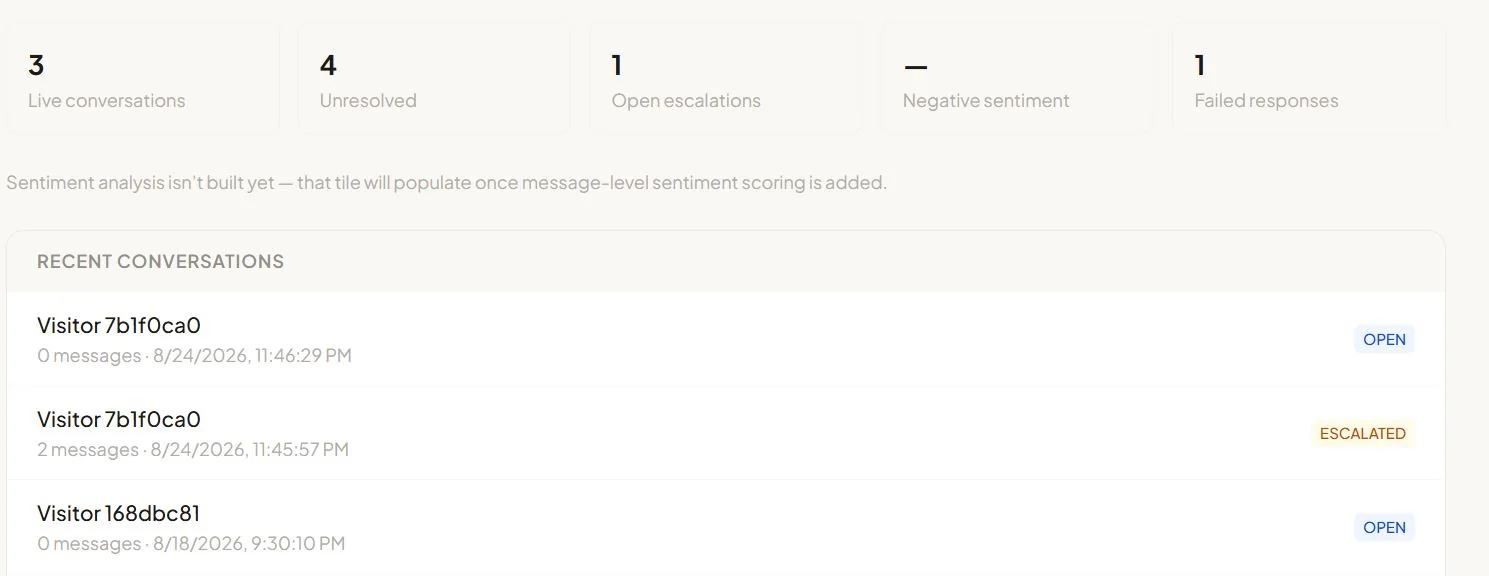
Once it’s live, the Monitortab shows live conversations, unresolved conversations, open escalations, and failed responses. Failed responses are your best signal for knowledge gaps — if the same kind of question keeps failing, that’s your next source to add.
Ready to set yours up?
Open your Support Agent’s dashboard and start with your first knowledge source.